

Hey there! As a supplier of FC UPC Fiber Optic Jumper, I've seen my fair share of damaged fiber optic jumpers. In this blog, I'm gonna walk you through the process of replacing a damaged FC UPC fiber optic jumper. Whether you're a tech-savvy pro or just getting started with fiber optics, this guide will help you get the job done right.
Understanding FC UPC Fiber Optic Jumpers
Before we dive into the replacement process, let's quickly go over what an FC UPC fiber optic jumper is. FC stands for Ferrule Connector, and UPC stands for Ultra Physical Contact. These jumpers are commonly used in telecommunications, data centers, and other high-speed networking applications. They're known for their reliable performance and low insertion loss.
The FC connector has a threaded screw-on design, which provides a secure connection and helps prevent accidental disconnections. The UPC polish on the connector end-face ensures a smooth and flat surface, minimizing signal reflection and maximizing signal transmission.
Signs of a Damaged FC UPC Fiber Optic Jumper
So, how do you know if your FC UPC fiber optic jumper is damaged? Here are some common signs to look out for:
- Poor signal quality: If you're experiencing slow data transfer speeds, intermittent connectivity, or high error rates, it could be a sign of a damaged jumper.
- Visible damage: Check the jumper for any visible signs of damage, such as cuts, kinks, or breaks in the fiber cable. Also, inspect the connectors for scratches, dirt, or debris.
- Connector issues: If the connector is loose, wobbly, or difficult to insert or remove, it may be damaged or worn out.
Tools and Materials You'll Need
Before you start replacing the damaged jumper, gather the following tools and materials:
- New FC UPC fiber optic jumper: Make sure to choose a jumper that is compatible with your existing network equipment. You can find a wide range of FC UPC Fiber Optic Jumpers on our website.
- Fiber optic cleaning kit: This will help you clean the connectors and ensure a proper connection.
- Screwdriver: You'll need a screwdriver to remove the threaded connectors.
- Safety glasses: Protect your eyes from any potential debris or fiber fragments.
Step-by-Step Replacement Process
Now that you have everything you need, let's get started with the replacement process. Follow these steps carefully:
Step 1: Power Down the Equipment
Before you start working on the fiber optic jumper, make sure to power down all the connected equipment. This will help prevent any electrical shocks or damage to the equipment.
Step 2: Locate the Damaged Jumper
Identify the damaged FC UPC fiber optic jumper in your network. It's usually connected to a patch panel, switch, or other network device.

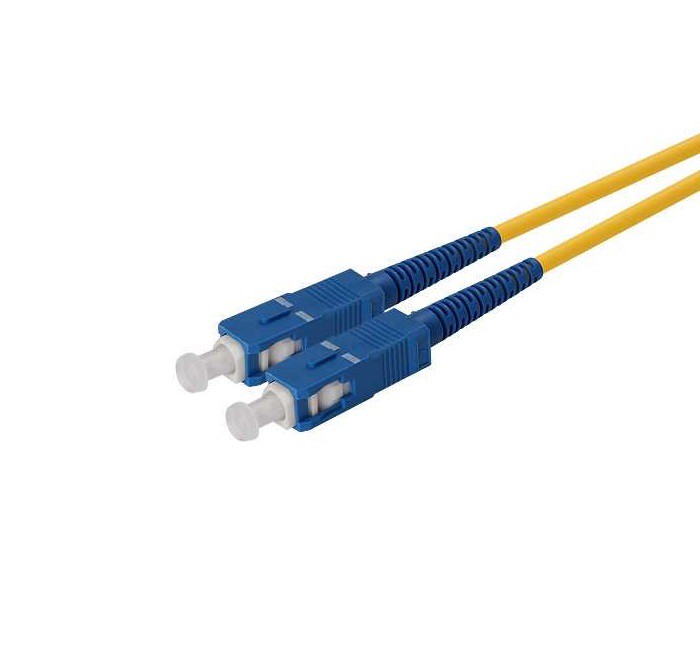
Step 3: Remove the Damaged Jumper
Using a screwdriver, carefully loosen the threaded connectors on both ends of the damaged jumper. Gently pull the jumper out of the connectors, being careful not to bend or damage the fiber cable.
Step 4: Clean the Connectors
Use a fiber optic cleaning kit to clean the connectors on the network device and the patch panel. This will remove any dirt, dust, or debris that could affect the performance of the new jumper.
Step 5: Inspect the New Jumper
Before installing the new jumper, inspect it for any visible damage. Check the connectors for scratches, dirt, or debris, and make sure the fiber cable is not kinked or bent.
Step 6: Install the New Jumper
Carefully insert one end of the new FC UPC fiber optic jumper into the connector on the network device. Tighten the threaded connector using a screwdriver, making sure it's secure but not over-tightened. Repeat the process for the other end of the jumper, connecting it to the patch panel.
Step 7: Power Up the Equipment
Once the new jumper is installed, power up all the connected equipment. Check the network for proper connectivity and signal quality.
Tips for a Successful Replacement
- Handle the fiber cable with care: Fiber optic cables are delicate and can be easily damaged. Avoid bending or kinking the cable, and don't pull on it too hard.
- Keep the connectors clean: Dirt and debris on the connectors can cause signal loss and other issues. Make sure to clean the connectors regularly using a fiber optic cleaning kit.
- Use the right tools: Using the right tools, such as a screwdriver and fiber optic cleaning kit, will make the replacement process easier and more successful.
- Test the network: After installing the new jumper, test the network to make sure it's working properly. Check the signal strength, data transfer speeds, and connectivity.
Other Fiber Optic Jumpers You Might Need
In addition to FC UPC fiber optic jumpers, we also offer a variety of other fiber optic jumpers, including SC APC Fiber Optic Jumper Pigtail and SC UPC Fiber Optic Jumper Pigtail. These jumpers are commonly used in different networking applications and offer reliable performance and low insertion loss.
If you're not sure which type of fiber optic jumper is right for your needs, our team of experts is here to help. We can provide you with detailed information and recommendations based on your specific requirements.
Conclusion
Replacing a damaged FC UPC fiber optic jumper is a relatively simple process that can be done with the right tools and materials. By following the steps outlined in this blog, you can ensure a successful replacement and get your network up and running again in no time.
If you have any questions or need further assistance, please don't hesitate to contact us. We're here to help you find the right fiber optic solutions for your business. Whether you're looking to purchase FC UPC Fiber Optic Jumpers or other fiber optic products, we offer high-quality products at competitive prices. Reach out to us to start a procurement discussion and take your network to the next level.
References
- Fiber Optic Association. (n.d.). Fiber Optic Connector Basics. Retrieved from https://www.thefoa.org/tech/ref/testing/connectors/basics.html
- Corning Incorporated. (n.d.). Fiber Optic Connectors. Retrieved from https://www.corning.com/us/en/products/optical-fiber-and-cables/fiber-optic-connectors.html
